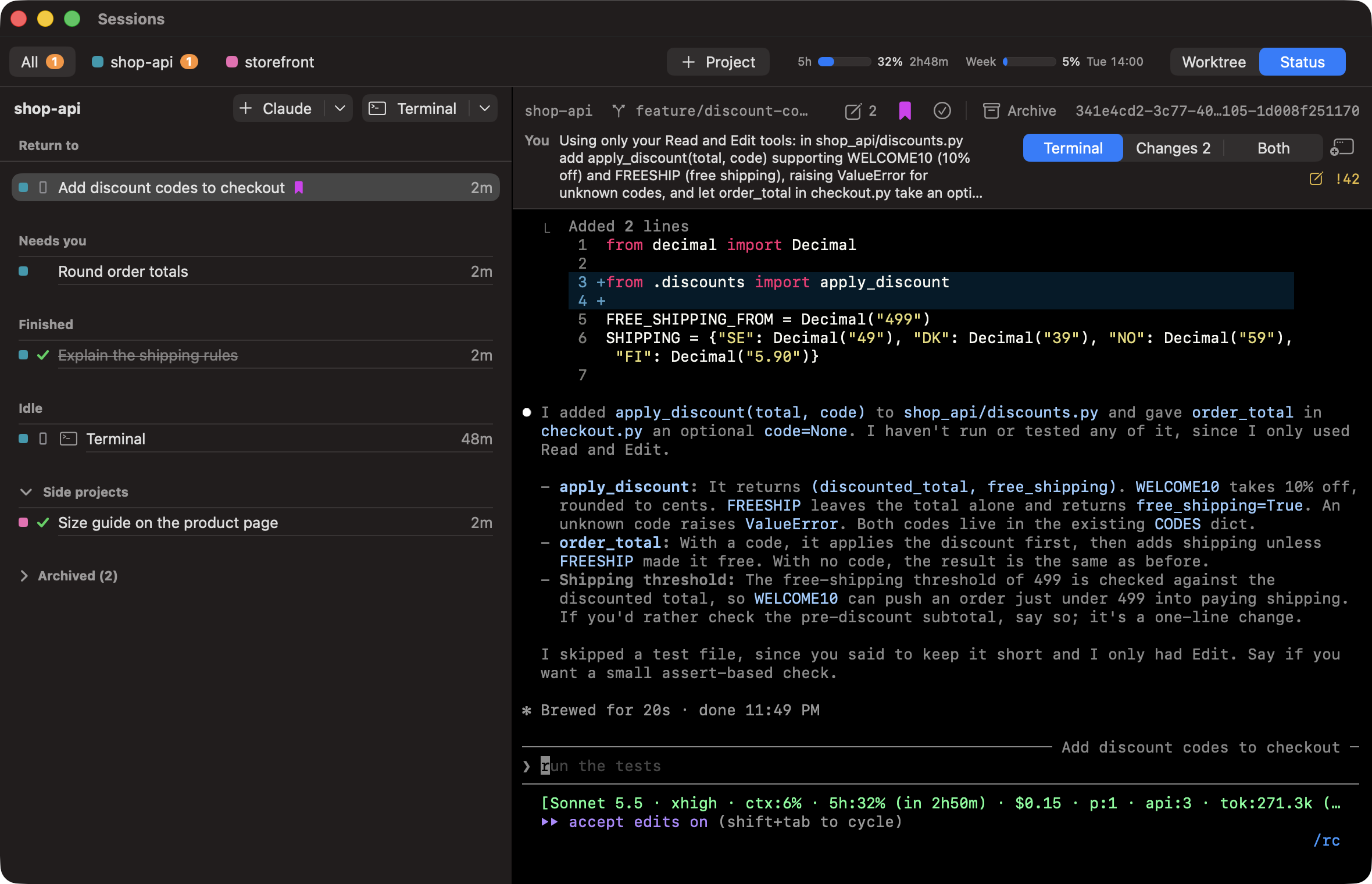
Sessions keeps all your Claude Code terminals in a single window. A blinking row needs you
A native Mac app for running many Claude Code sessions side by side. They're sorted by project and each shows a live status, so you see at a glance which are waiting on you, which are working and which just finished.
Why it exists
With 20–30 Claude Code sessions across repos and worktrees, terminal tabs stop working. You lose track of which session is waiting on a question, which is still working and which finished ten minutes ago.
Status you can trust
Each state has its own shape, colour and motion, so the list reads even in greyscale. Only the states where something is happening move. When the status can't be read, the app says so instead of guessing.
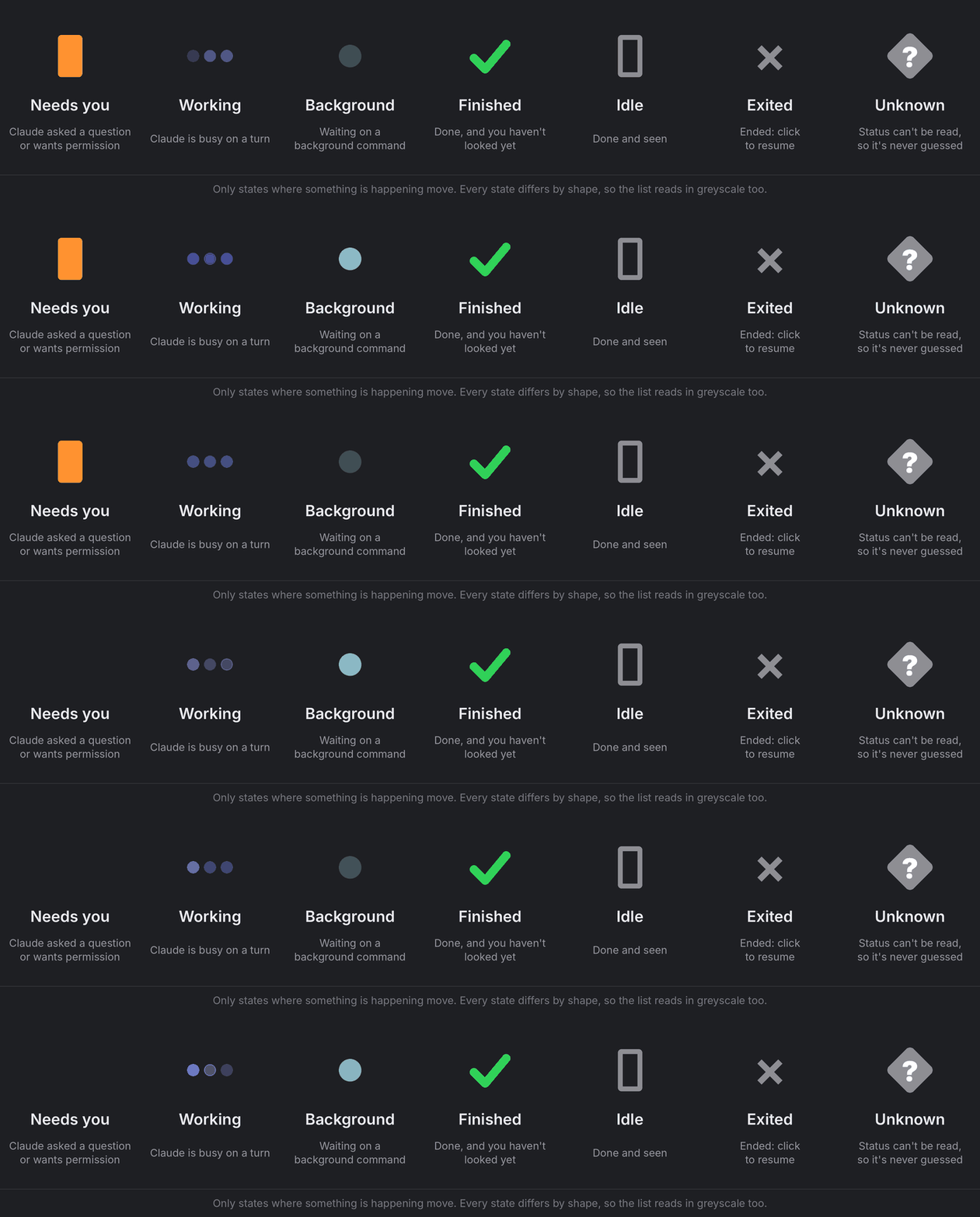
- Needs you
- Claude asked a question or wants permission
- Working
- Claude is busy on a turn
- Background
- Waiting on a background command
- Finished
- Done, and you haven't looked yet
- Idle
- Done and seen
- Exited
- Ended; click to resume
- Unknown
- Status can't be read
- Status comes from Claude Code's own session files: live, with no setup.
- Group the list by worktree, or by status across every project.
- Mark a session to return to, or as done, so the list matches your own to-do list.
- A notification when a session needs you (with sound) or finishes (quiet). Click it to jump there.
- Dock badge with the count waiting on you. Mute any session you don't need to hear from.
The list, live
The orange cursor on "Round order totals" blinks until you answer Claude. Nothing else moves, because nothing else needs you.
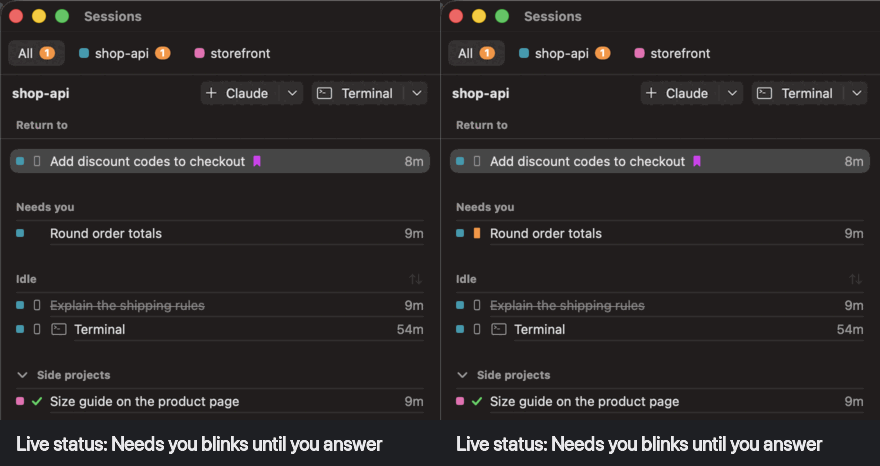
Claude asks, the row waits
Claude asks whether order totals round half up or half to even. The session sits under Needs you until you pick an answer.
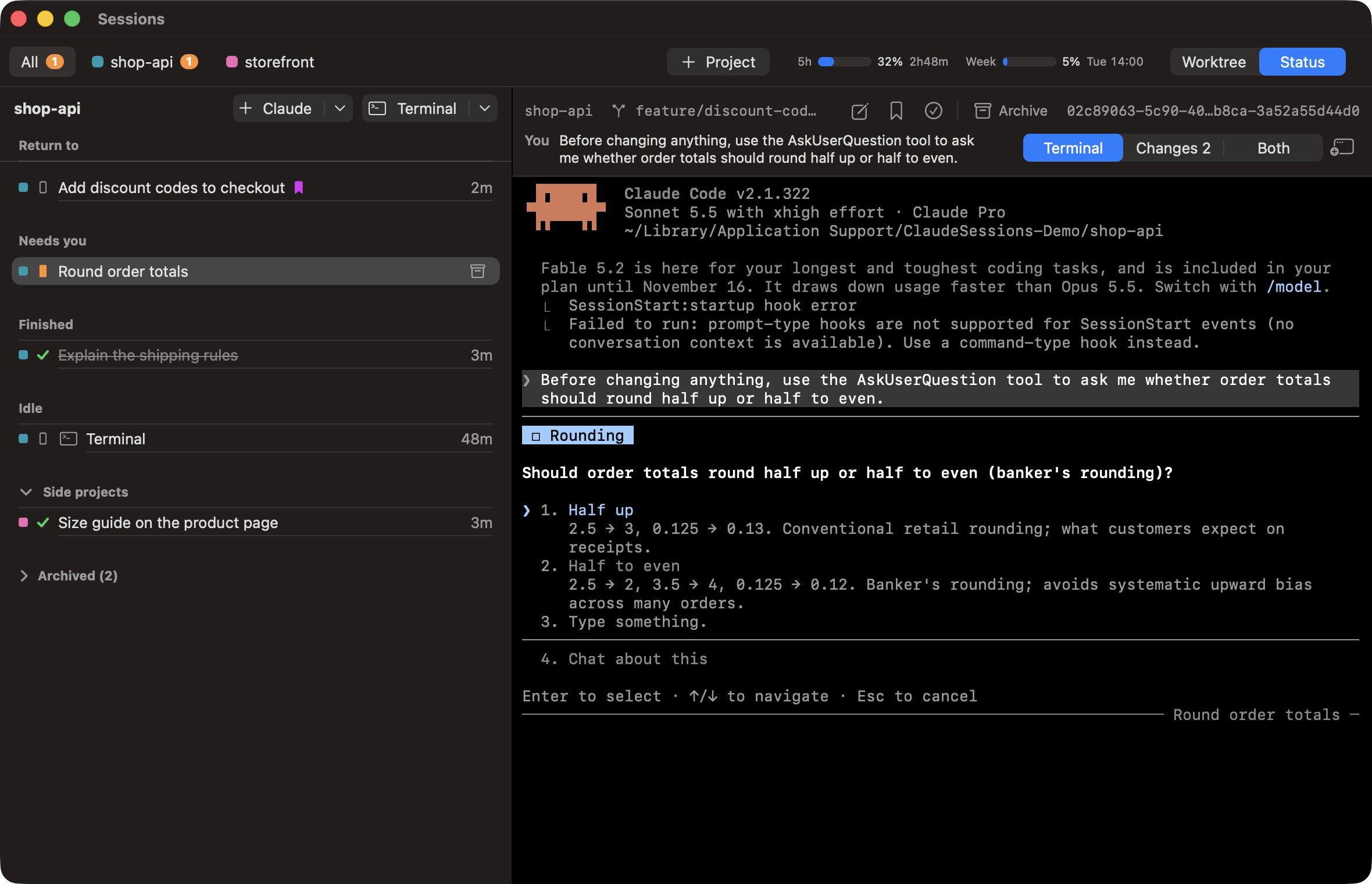
Organised your way
One tab per project, each in its own colour. Git worktrees belong to their repo's tab, and a project needn't be a git repo.
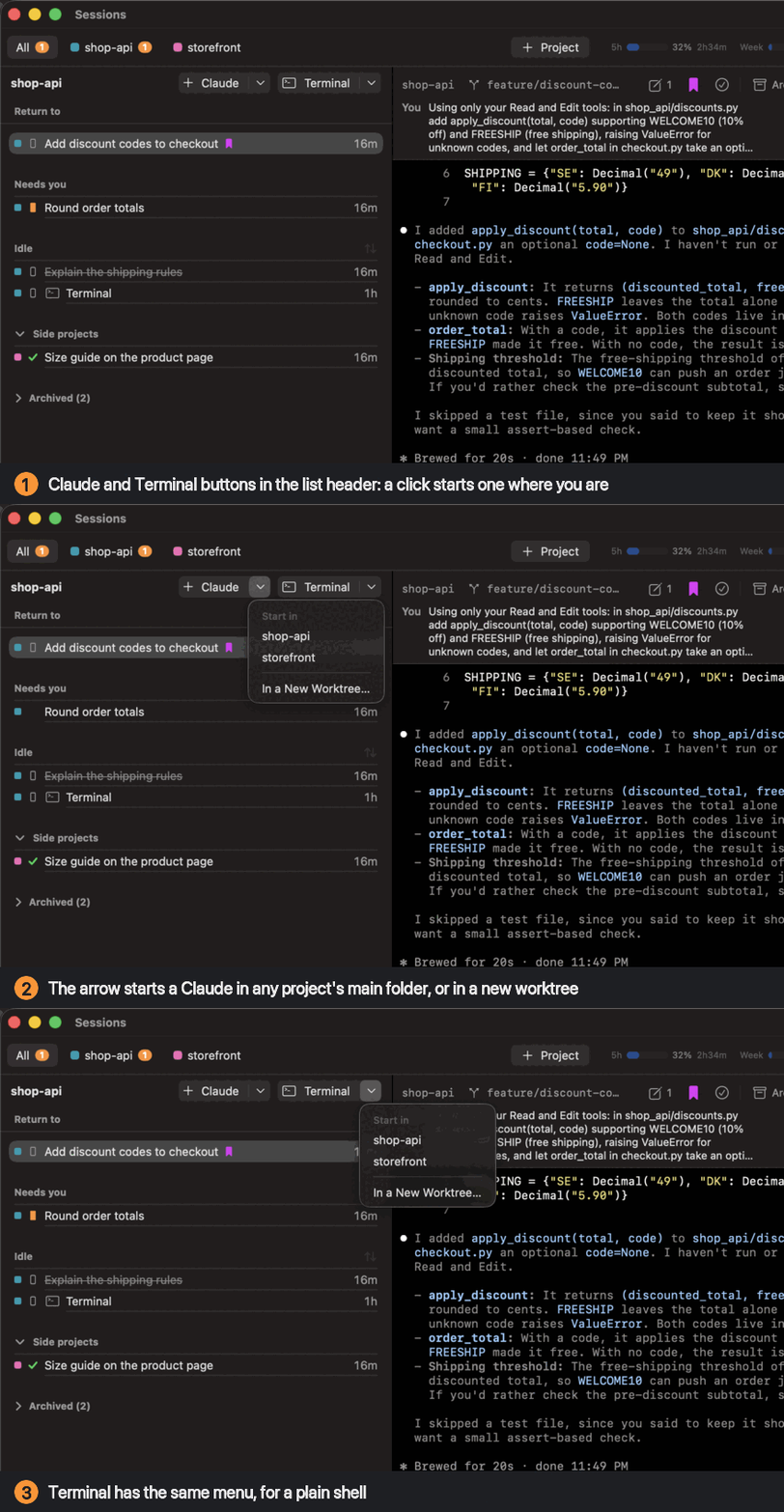
- The list header has Claude and Terminal buttons. A click starts one where you are. The arrow starts one in any project's main folder, or in a new worktree: type a branch name and Claude starts in it. ⌘N and ⌘T do the same from the keyboard.
- Titles come from Claude itself. Rename any session by hand.
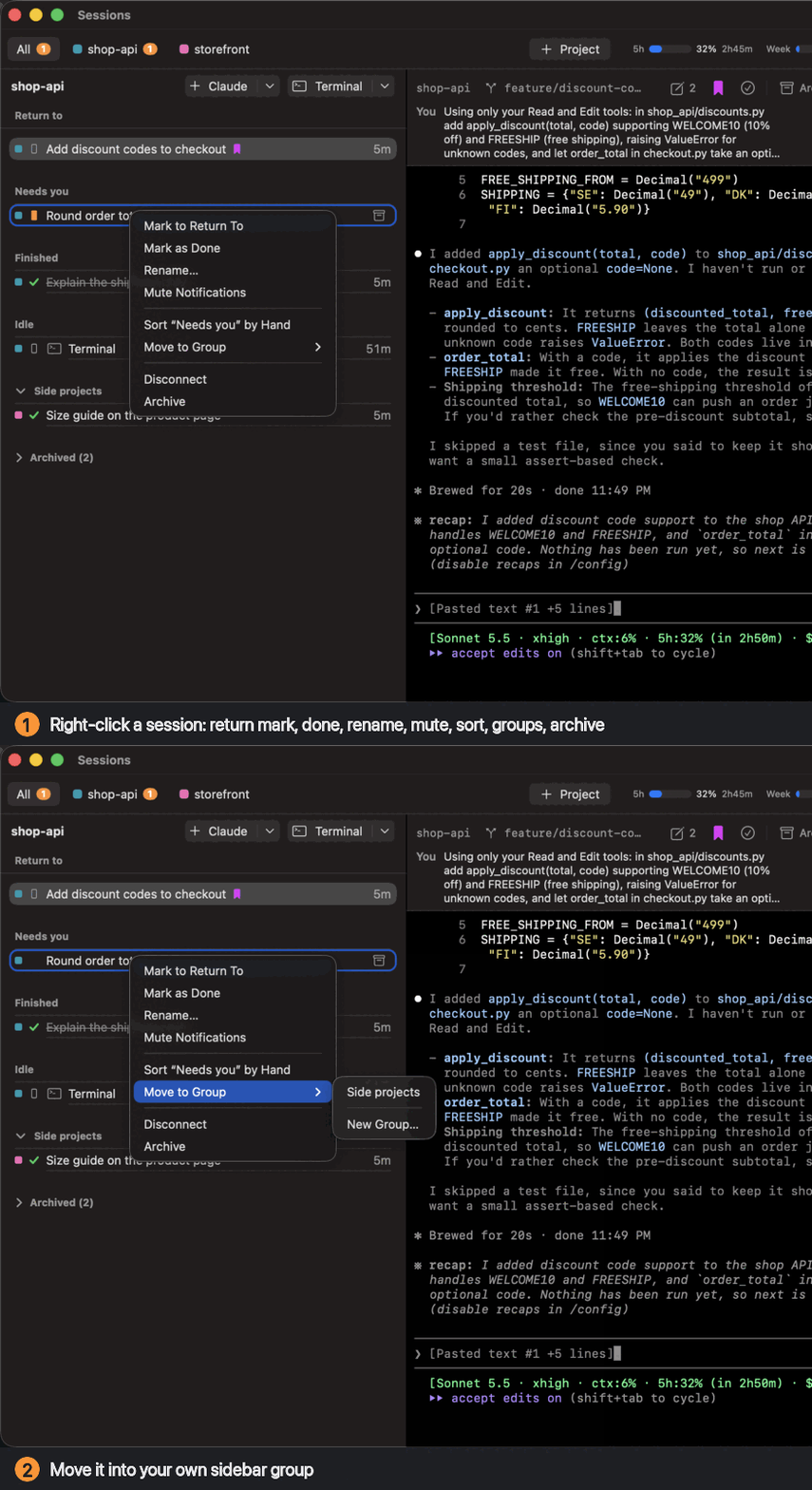
- Make your own sidebar groups, and drag sessions into any order.
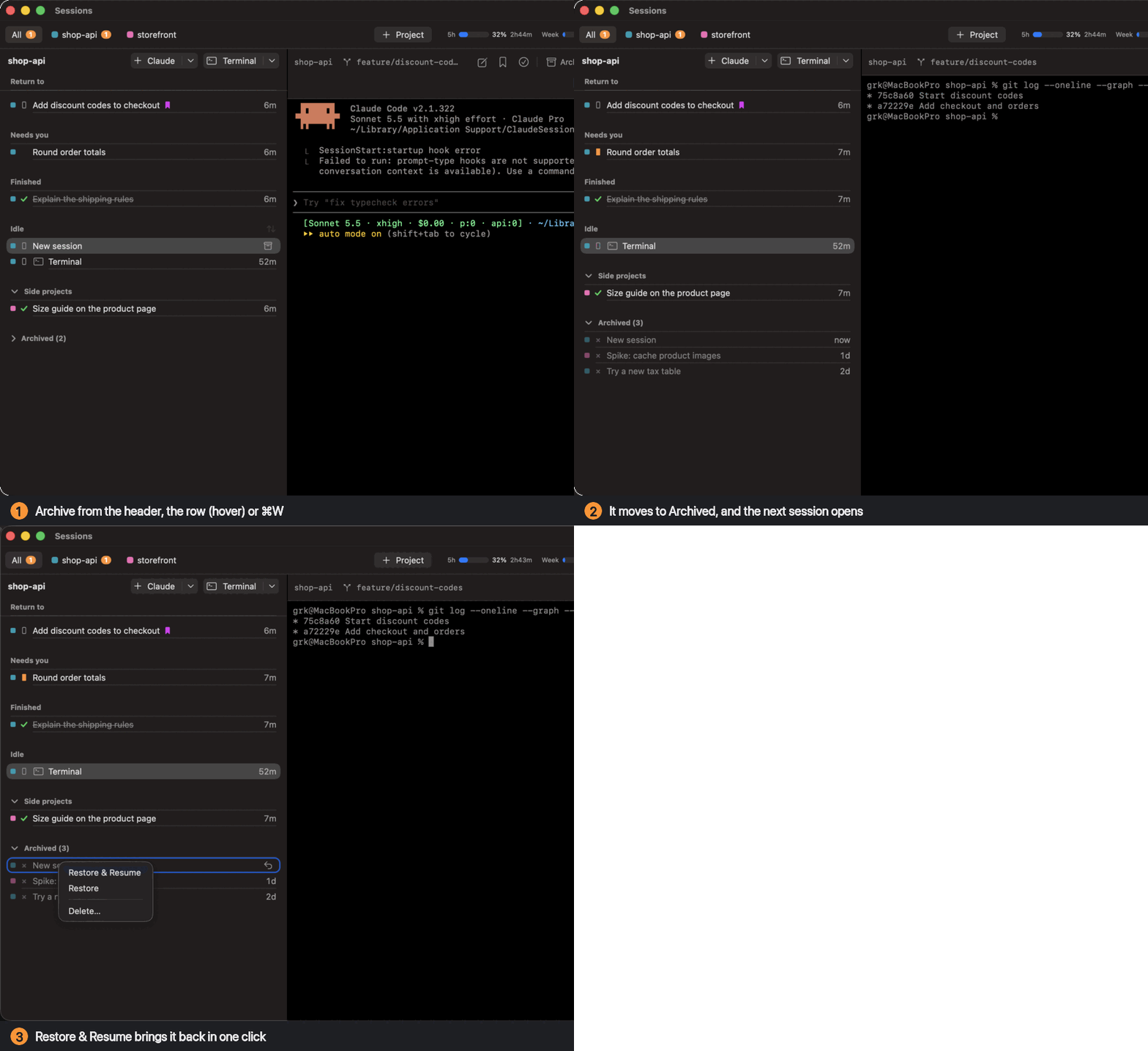
- Archive from a row, the header or ⌘W, and the next session opens. Restore & Resume brings it back in one click.
Start one from the header New in 0.9
- Claude and Terminal sit in the list header, and a click starts one where you are
- The Claude arrow lists every project, and a new worktree
- Terminal has the same menu, for a plain shell
Right-click a session
- The menu: return mark, done, rename, mute, sort by hand, disconnect, archive
- Move to Group puts it in one of your own sidebar groups
Archive, then bring it back
- Hover the Terminal row and click its archive button
- It moves to Archived
- Right-click it: Restore & Resume
- It's back in the list, running
Review Claude's changes New in 0.7
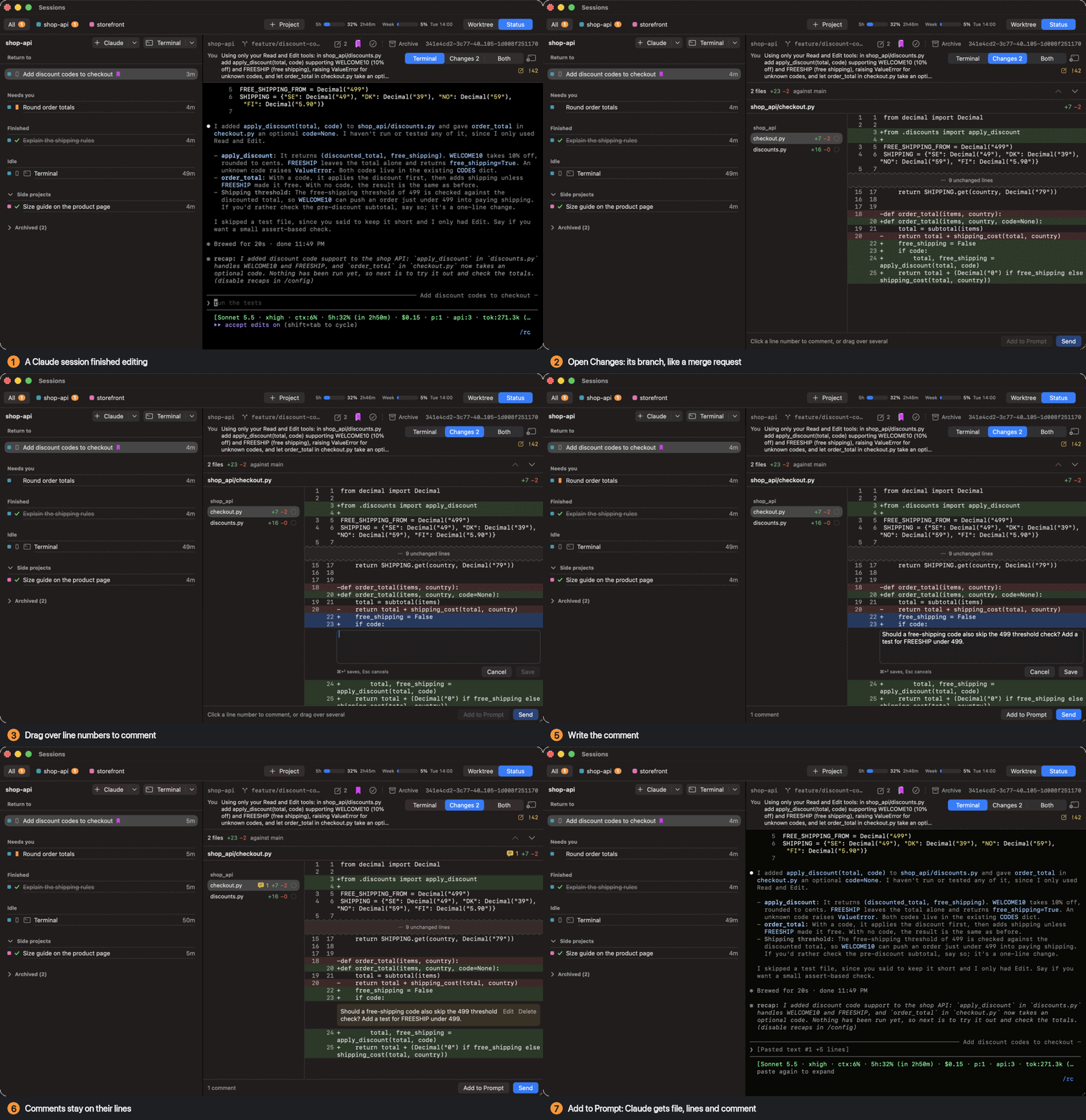
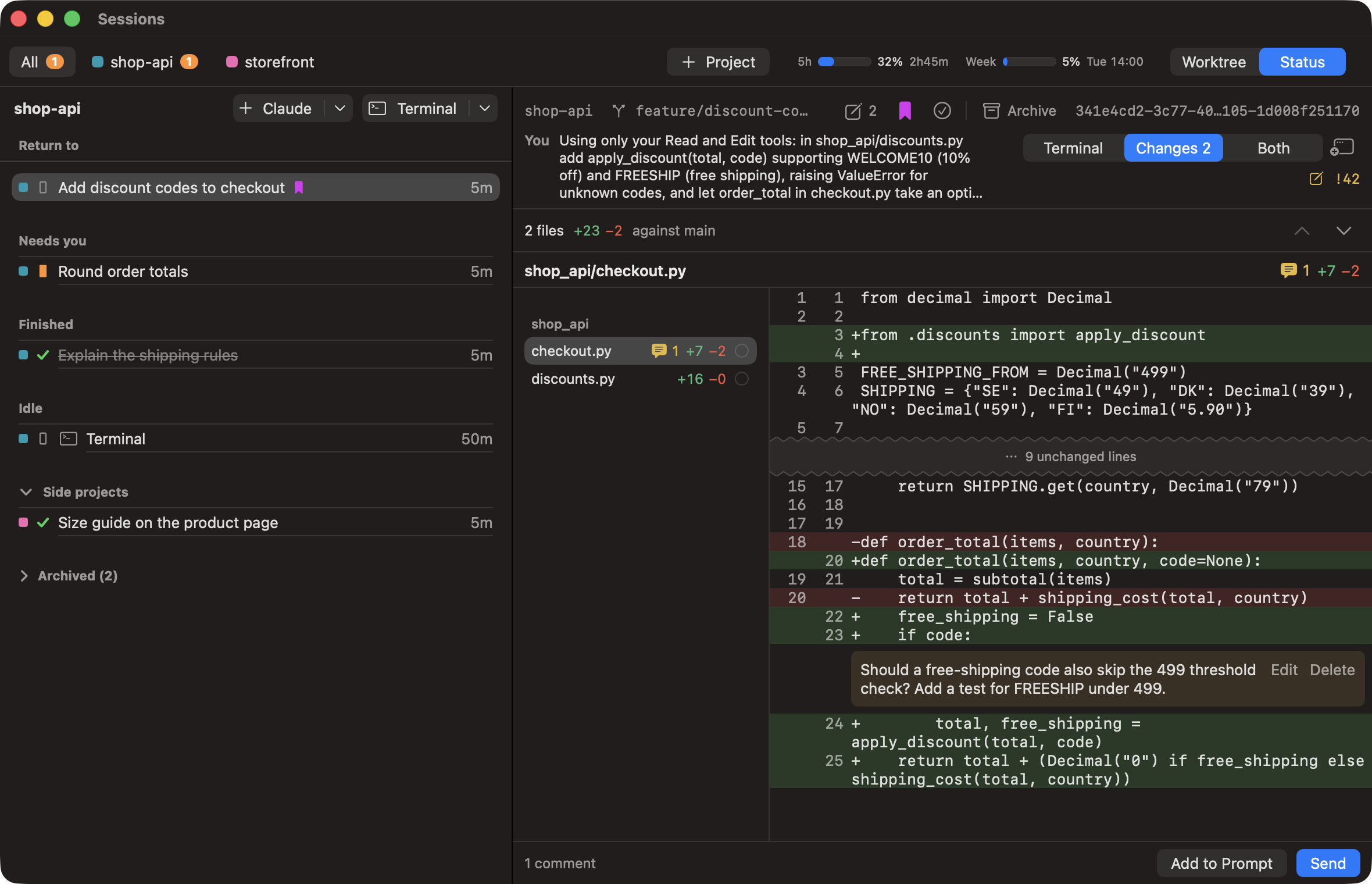
Read a session's branch like a merge request, comment on the lines you question, and hand the comments to Claude with the file, line numbers and code attached.
- The diff runs against
mainormaster, found rather than assumed, with uncommitted work included. - Show it instead of the terminal, beside it, or in its own window.
- Comment on a line or a range, removed lines too. Comments stay on their lines while Claude keeps editing.
- Send delivers every comment in one message. Add to Prompt lets you add to it first.
- Sending waits while Claude shows a permission prompt, so a comment never approves something you didn't see.
From diff to Claude's prompt
- A session has finished editing
- Open Changes: its branch, like a merge request
- Drag over line numbers 21–22
- Start the comment
- Finish it and save
- The comment sits on its lines
- Add to Prompt puts it in Claude's prompt
The Changes view
Files on the left with their added and removed counts, one file at a time on the right, and a saved comment under lines 21–22.
Lighter and steadier New in 0.8
Many sessions add up, so 0.8 gives memory back and removes small snags.
- Idle disconnect: Settings can disconnect Claude sessions idle for 1 to 24 hours and free about 220 MB each. Sessions that wait for you, work or are on screen stay, and Resume brings one back with its conversation.
- Option types your layout's characters, such as @ { } on Swedish and Danish keyboards. Option with arrows or Backspace still moves by word.
- 1,000 lines of scrollback, doubled from 500, and closing a bash terminal ends its background jobs.
- Both view makes room in small windows so neither pane is cut off.
- Steadier details: Esc is no longer shown as your last message, range selection keeps the open session, and a session's time ignores Claude's own compactions.
Updates itself New in 0.9
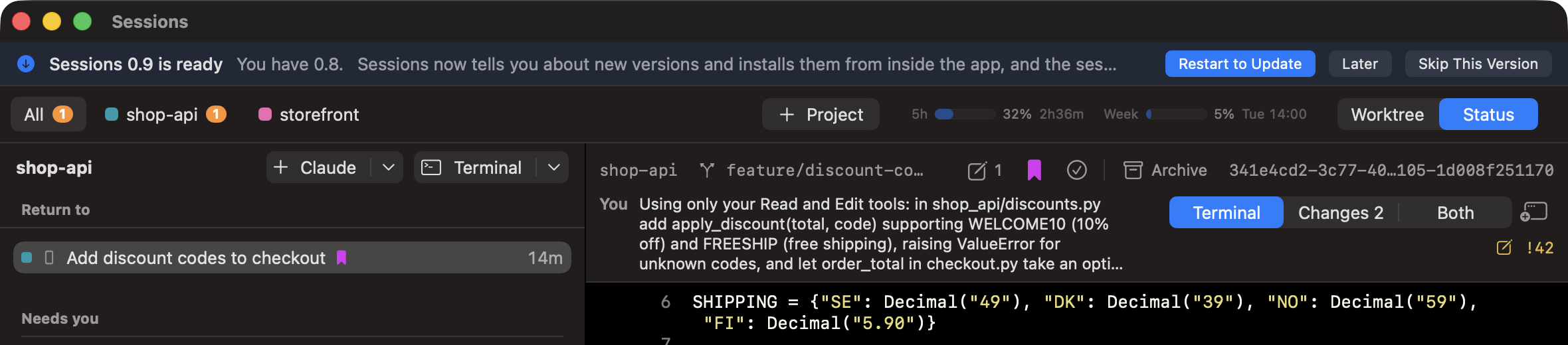
Sessions checks for a newer version when it opens and every six hours. It shows a banner, and from 0.9 it can install the update for you.
- The banner offers Download, Later and Skip This Version. A notification comes once per version.
- Restart to Update swaps the new version in and reopens the app. Sessions downloads it in the background and checks it against a signing key built into the app first.
- Running sessions keep going through the restart.
- Sessions › Check for Updates… asks on demand, and Settings has the update address.
- Copies before 0.9 have no key, so they install 0.9 by hand once.
Never lose a session
A small background host owns every terminal and outlives the app.
- Quit, crash or install a new build: sessions keep running, and the app reattaches with full scrollback.
- After a Mac restart, every session is still listed and resumes with
claude --resumewhen you click it. - Claude starts through your login shell, so PATH, SSH agent and your own hooks work as in your normal terminal.
- Sessions never edits anything under
~/.claude/. It only reads.
The small things
- Merge requests and artifacts a session mentions show in its header. With
glab, MRs show their state and title. - Usage bar: your 5-hour and weekly Claude usage, with reset times.
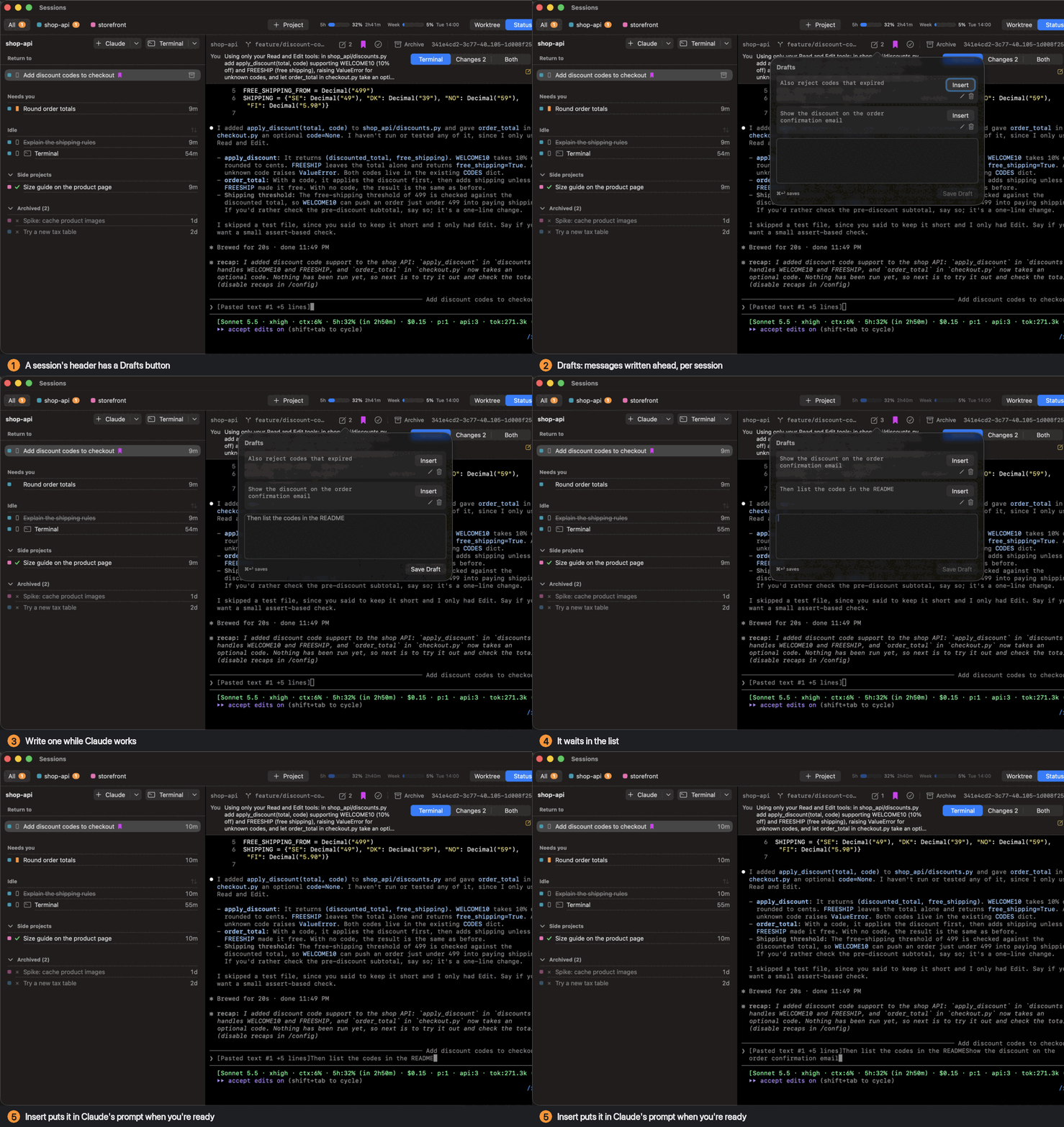
- Drafts (⌘D): write the next message while Claude works and insert it when it's ready.
- Settings: text sizes, terminal scroll speed, idle disconnect and the update address.
Links in the header
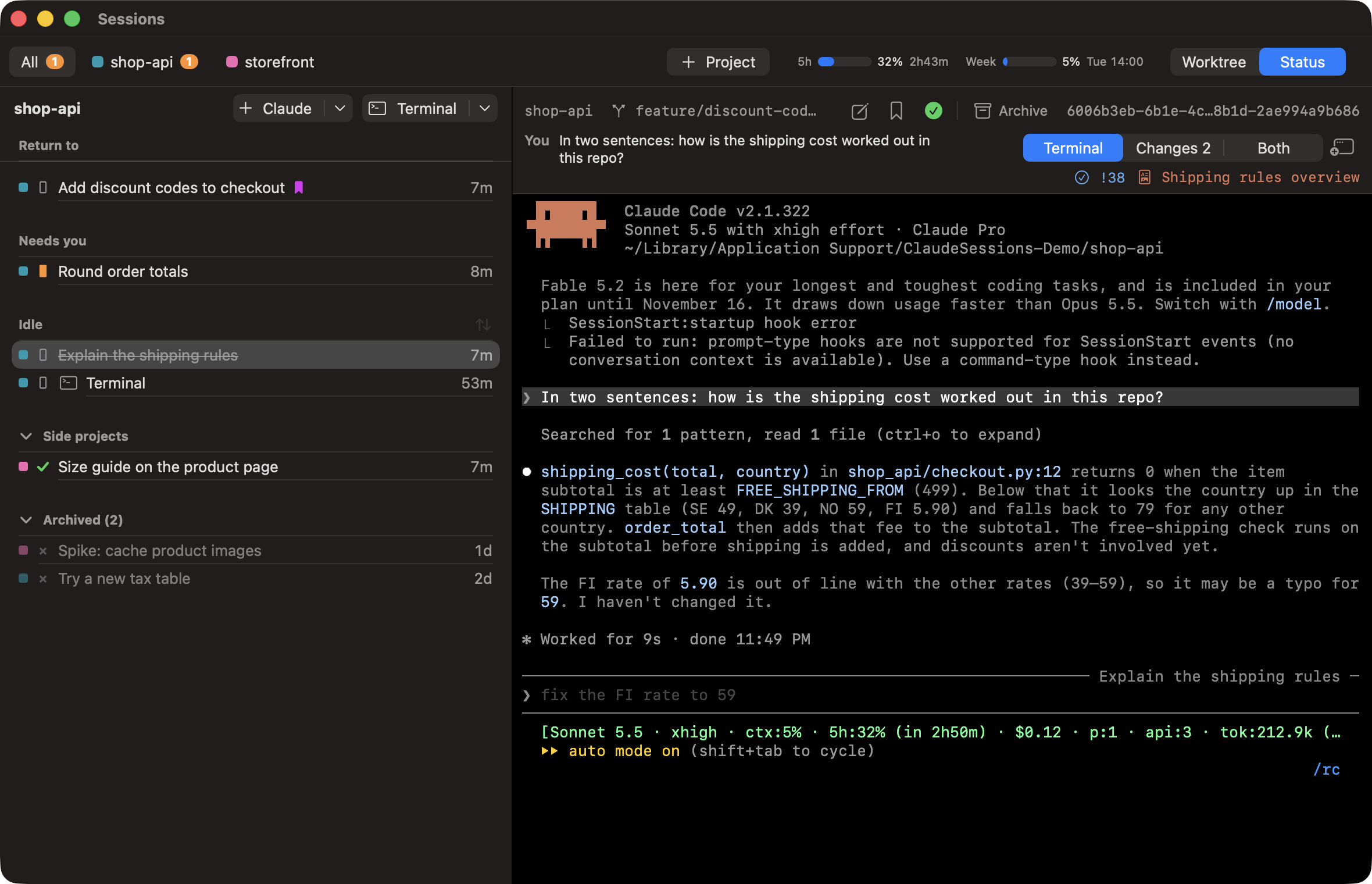
Top right of the header: merge request !38, coloured by its state, and the artifact "Shipping rules overview".
Drafts
- The Drafts button in the session header
- Messages written ahead, per session
- Write one while Claude works
- It waits in the list
- Insert puts it in Claude's prompt
Help menu
Keyboard Shortcuts (⌘/), then What's New. It also opens once after each update, and now starts with 0.9.
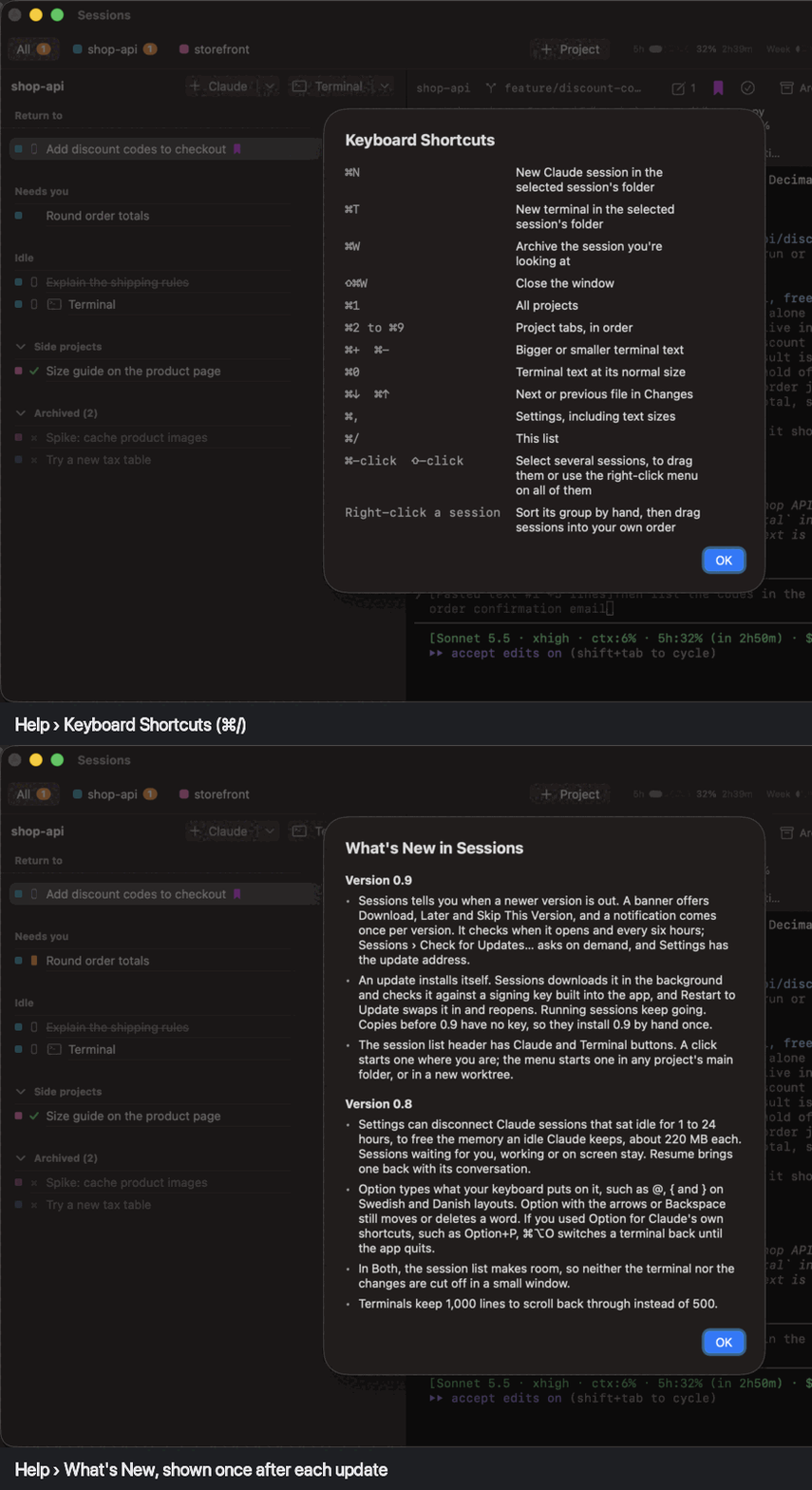
Keyboard shortcuts
- ⌘N
- New Claude session
- ⌘T
- New terminal
- ⌘W
- Archive the session you're looking at
- ⇧⌘W
- Close the window
- ⌘1
- All projects
- ⌘2 – ⌘9
- Project tabs, in order
- ⌘+ ⌘- ⌘0
- Terminal text size
- ⌘↓ ⌘↑
- Next or previous file in Changes
- ⌘D
- Drafts
- ⌘/
- All shortcuts
Try it
Download Sessions 0.96.4 MB · macOS 14+ · Apple Silicon
Check the download: shasum -a 256 Sessions-0.9.zip in Terminal should print70e066a34b0ff8cd6f7ad05b82e22bb4e0f7a6fccf5a9481c8ba5afc6224e174
- Unzip
Sessions-0.9.zipand move Sessions to Applications. - The first open is blocked because the app isn't signed. Go to System Settings › Privacy & Security and click Open Anyway. You only do this once.
From here on Sessions updates itself: a banner offers each new version and Restart to Update installs it. A copy older than 0.9 can't do that yet, so install 0.9 by hand this one time.
Needs an Apple Silicon Mac on macOS 14 or later, and Claude Code with claude on your shell PATH (2.1.309 or later for the Background status). Optional: glab for merge request states.
Changelog
Every version so far, newest first. The same notes open in the app under Help › What's New.
0.93 changes
- Sessions tells you when a newer version is out. A banner offers Download, Later and Skip This Version, and a notification comes once per version. It checks when it opens and every six hours; Sessions › Check for Updates… asks on demand, and Settings has the update address.
- An update installs itself. Sessions downloads it in the background and checks it against a signing key built into the app, and Restart to Update swaps it in and reopens. Running sessions keep going. Copies before 0.9 have no key, so they install 0.9 by hand once.
- The session list header has Claude and Terminal buttons. A click starts one where you are; the menu starts one in any project's main folder, or in a new worktree.
0.811 changes
- Settings can disconnect Claude sessions that sat idle for 1 to 24 hours, to free the memory an idle Claude keeps, about 220 MB each. Sessions waiting for you, working or on screen stay. Resume brings one back with its conversation.
- Option types what your keyboard puts on it, such as @, { and } on Swedish and Danish layouts. Option with the arrows or Backspace still moves or deletes a word. If you used Option for Claude's own shortcuts, such as Option+P, ⌘⌥O switches a terminal back until the app quits.
- In Both, the session list makes room, so neither the terminal nor the changes are cut off in a small window.
- Terminals keep 1,000 lines to scroll back through instead of 500.
- Closing a bash terminal also ends the jobs it started in the background.
- A terminal no longer keeps the keyboard mode of a program that has quit, such as Claude or vim, after the app reopens.
- Pressing Esc in Claude no longer shows "[Request interrupted by user]" as your last message.
- Shift-click and Select All in the session list keep the open session on screen.
- New Session on a session whose worktree folder was deleted starts in the project instead of adding an extra project tab. A branch with a slash, such as feature/foo, gets one worktree section, not two.
- A session's time no longer jumps to when Claude last compacted its context on its own, also after the app reopens.
- The What's New window fits a small window, and when the session host can't start because its folder path is too long, the alert says so.
0.77 changes
- You can review a Claude session's changes in the app. The Terminal, Changes and Both switch at the top right shows its branch against main like a merge request, uncommitted work included, and the window button opens it in its own window.
- Click a line number to comment on that line, or drag over several. Comments stay on their lines while Claude keeps editing. Send gives Claude all of them in one message, with the file, the line numbers and the lines; Add to Prompt puts them in the prompt for you to add to.
- Right-click a merge request link to remove one the app picked up by mistake. Restore Removed Links, on a link or in the session's menu, brings them back.
- Your last message keeps its line breaks in the header.
- The open session shows its time in the list like the others, with its archive button on hover.
- Projects have 12 colours, the most distinct first. Existing projects may change colour once.
- The Colour and Move to Group submenus stay open while Claude works.
0.62 changes
- Claude in full screen keeps the terminal scroll speed when you spin the mouse wheel fast, and a new speed applies at once, also in sessions already running.
- The scroll speed goes up to 10×, and you can type it in Settings.
0.53 changes
- Opening an older session no longer puts older numbers back in the usage bar. Its tooltip says when the numbers last came in, and the bar fades once they're over 10 minutes old.
- A session shows only the merge requests and artifacts it names itself, not ones quoted in tool output such as artifact templates, a Slack channel or git history. Links saved before are checked again once.
- Settings has a terminal scroll speed. Claude in full screen takes it when a session starts.
0.41 change
- Clicking the session list, even its empty space, no longer takes typing away from the terminal on screen.
0.38 changes
- Archive from the session list: hover a row, or use the Archive button in the session header. Archiving selects the next session.
- Restore & Resume brings an archived session back in one click. Delete removes it from the list.
- The app reopens on the session you had selected.
- With no session open, the empty pane offers New Session, New Terminal or Add Project.
- Folders are called projects, since they needn't be git repos.
- The right-click menu on sessions works again.
- Naming a new group right after dropping sessions on it works.
- Settings no longer cuts off its labels, and the first window opens larger.
0.210 changes
- Keyboard shortcuts for new sessions, archiving, project tabs and text size. Help › Keyboard Shortcuts (⌘/) lists them.
- ⌘W archives the session you're looking at instead of closing the window. ⇧⌘W closes the window.
- An archive button in the session header.
- The session list keeps its width when you reopen the app.
- Links and header buttons show a pointing hand.
- Settings has the interface and terminal text sizes.
- Any group can keep your own order: click the arrows at the end of its title, then drag sessions up or down.
- Dragging works wherever you let go: onto a session, a group's title or the gap between groups. A dragged group shows its place between groups.
- Archiving or disconnecting asks first when something is still running: Claude, or a command in a terminal such as a build, a server or another AI CLI.
- This window, once after each update. Help › What's New opens it again.
0.11 change
- The first version shared with colleagues: Claude sessions and terminals for each project, with their status, merge requests, artifacts and drafts.